

Markdown to PDF, with real pages
Paste your Markdown into the box below. The preview lays it out as printed pages while you type, with a running header and page numbers. When it looks right, press Download PDF: the file has the same pages as the preview.
# Project report

[[toc]]

## Summary

Paste your own Markdown here. The preview shows it as A4 pages, and **Download PDF** gives you the same pages as a file.

## Results

| Quarter | Orders | Change |
|:--------|-------:|-------:|
| Q1      |  1,240 |      – |
| Q2      |  1,610 |   +30% |

The growth rate is $g = \frac{1610 - 1240}{1240} \approx 0.30$.[^1]

> [!NOTE]
> The header shows the title, the footer shows page *n* of *total*.

<!-- pagebreak -->

## Next steps

- [x] Write the draft
- [ ] Pick a theme
- [ ] Send the PDF

[^1]: Footnotes sit at the foot of the page they belong to.
Paste your own Markdown here. The preview shows it as A4 pages, and Download PDF gives you the same pages as a file.
| Quarter | Orders | Change |
|---|---|---|
| Q1 | 1,240 | – |
| Q2 | 1,610 | +30% |
The growth rate is .[1]
Note
The header shows the title, the footer shows page n of total.
- Write the draft
- Pick a theme
- Send the PDF
Footnotes sit at the foot of the page they belong to. ↩︎
The PDF is made on our server from a saved document, so Download PDF saves your text as a document first. Nothing is stored while you only type in the box.
What the PDF gets
A converter turns Markdown into one long HTML page and prints it. markoto lays the text out as pages first, so you can see and control where things land:
- Page size and margins. A4, A5, Letter or Legal, portrait or landscape, with the margins you set.
- Headers and footers. Left, centre and right slots with the document title, page number, page count and date, plus an optional logo.
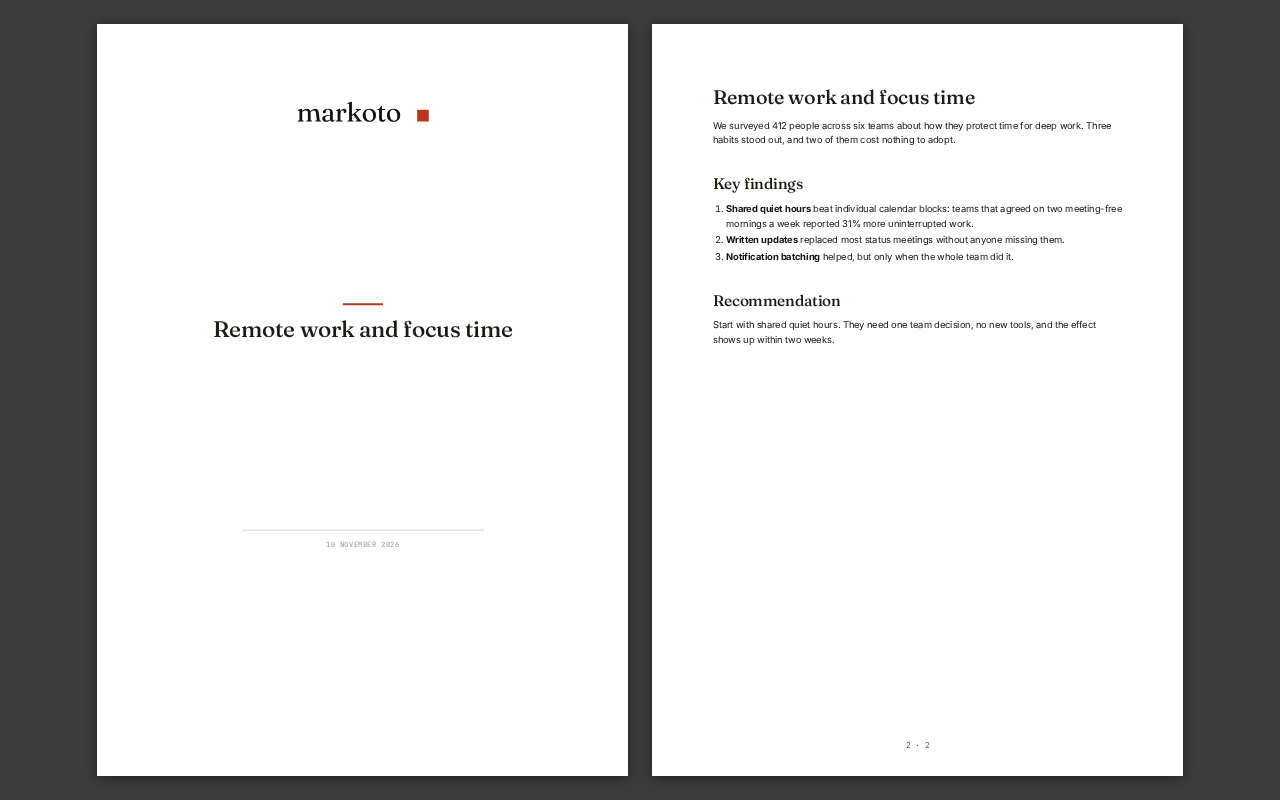
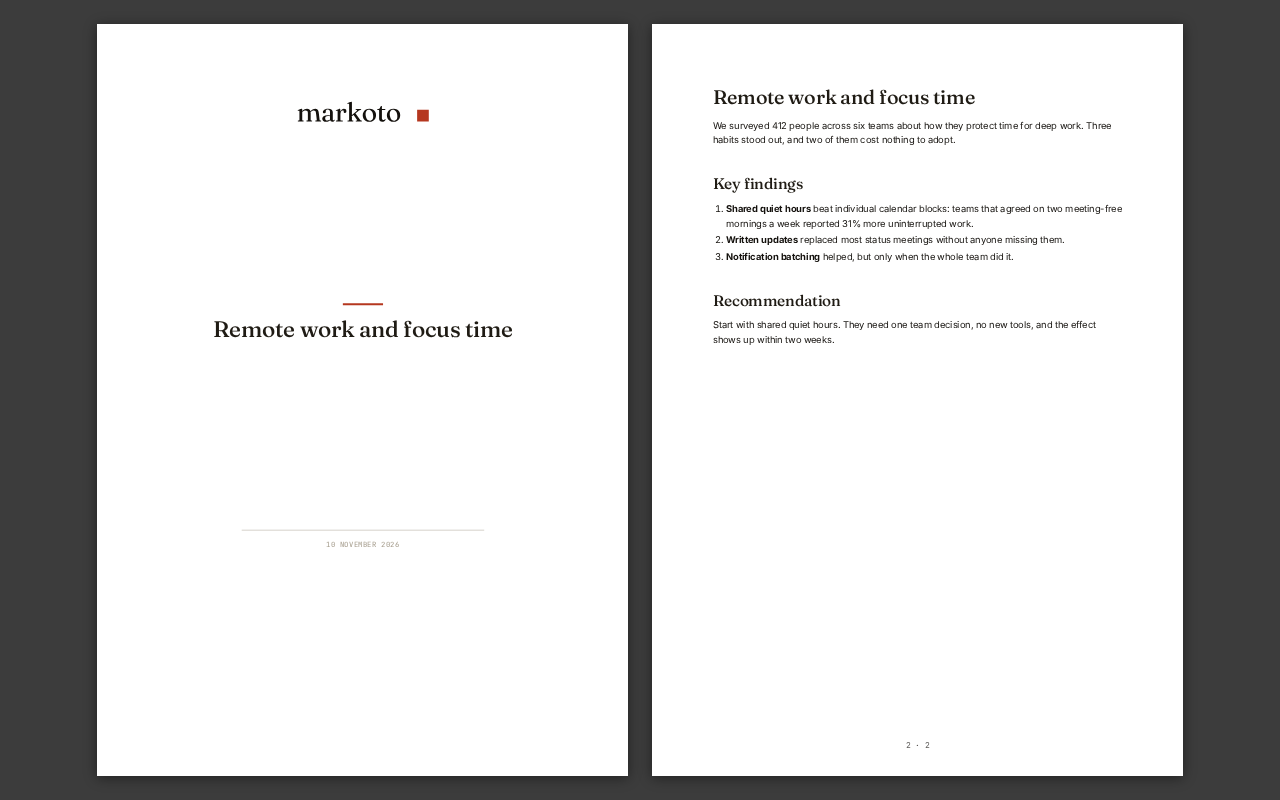
- A cover page. Four layouts with title, subtitle, authors, date and logo. Headers and page numbers are left off the cover.
- A table of contents with page numbers. Write
[[toc]]where it should go. - Footnotes at the foot of the page, not collected at the end.
- Page breaks where you put
<!-- pagebreak -->on its own line. - Math, diagrams and code. LaTeX formulas (KaTeX), Mermaid diagrams, highlighted code blocks, tables and GitHub-style alerts render on the page.
Change the look without touching the text
Every document has a theme: fonts, colours, margins, columns, tables, the header, the footer and the cover. The built-in presets include markoto, Modern, arXiv preprint, IEEE conference paper (two columns), Thesis, Technical documentation, Corporate report, Newsletter and Resume. Pick one, then change any detail. The preview and the PDF use the same theme. When no setting does what you want, you can add your own CSS to a document.
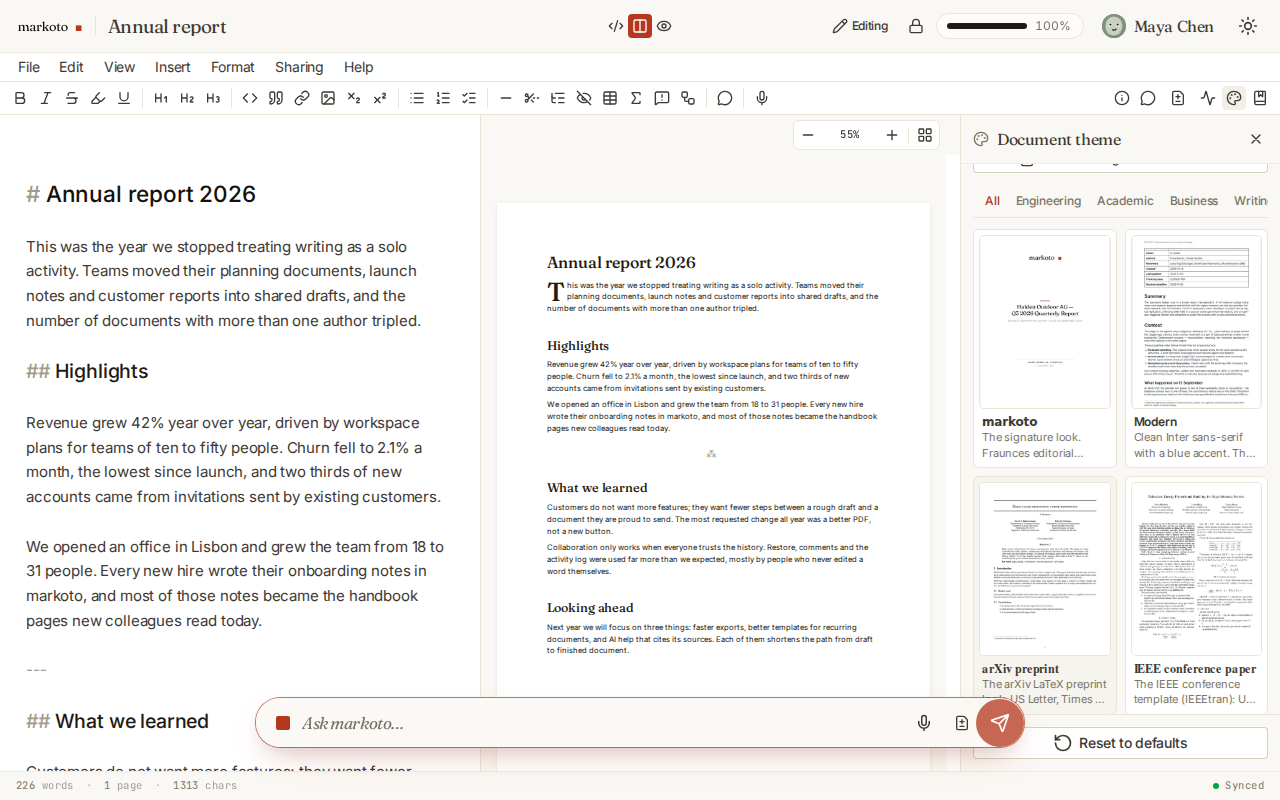
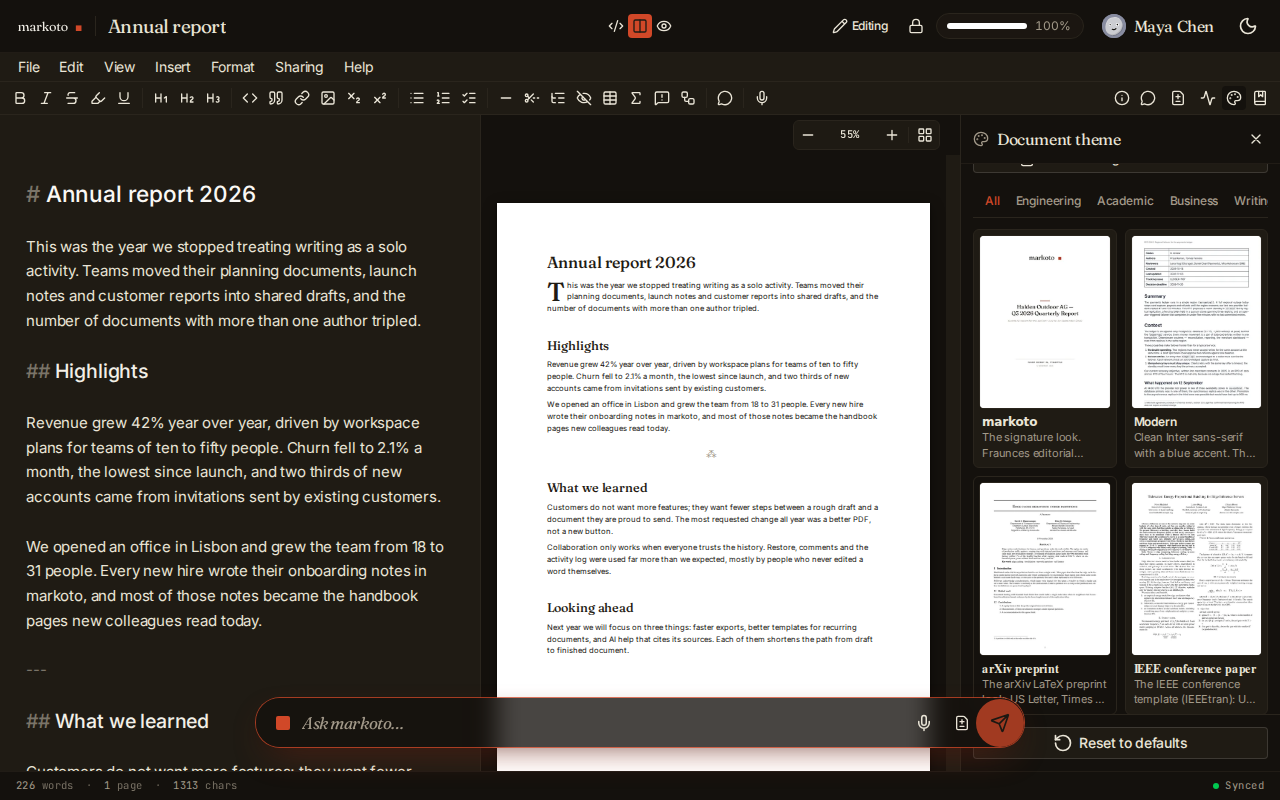
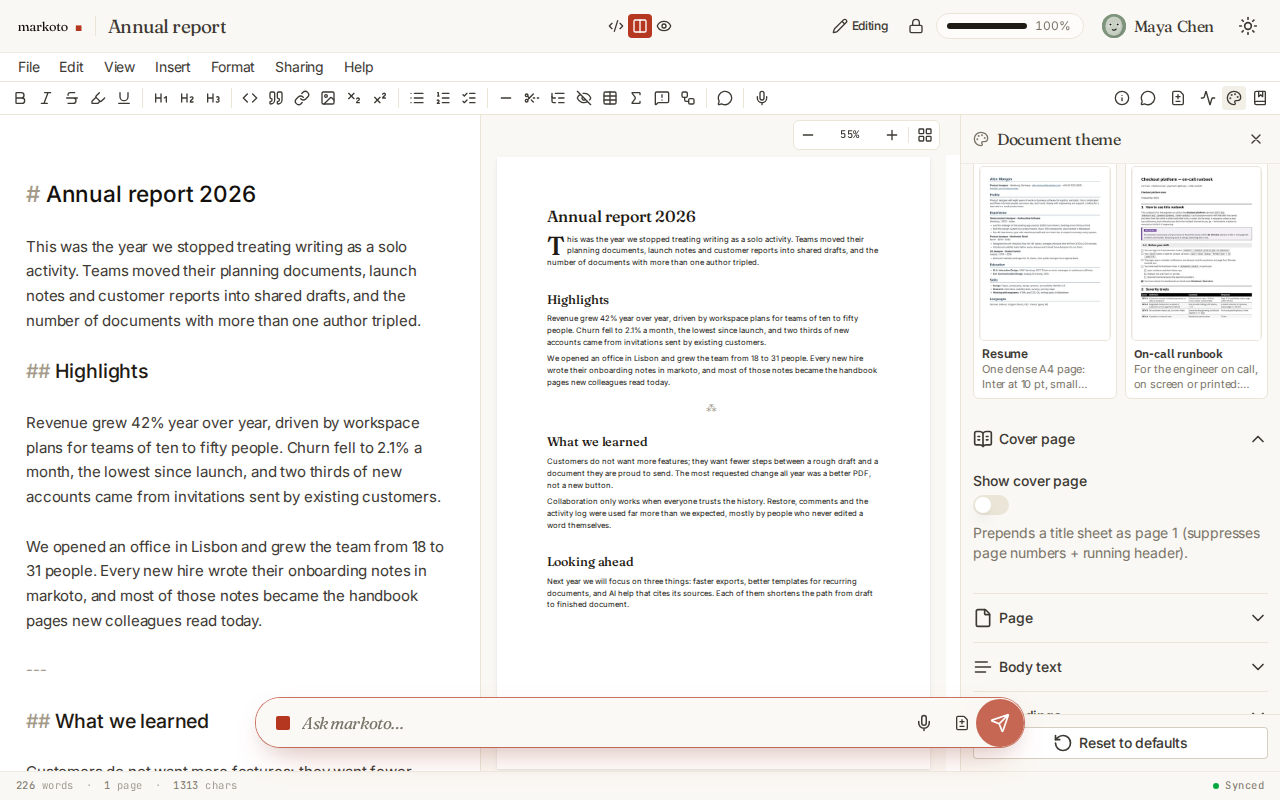
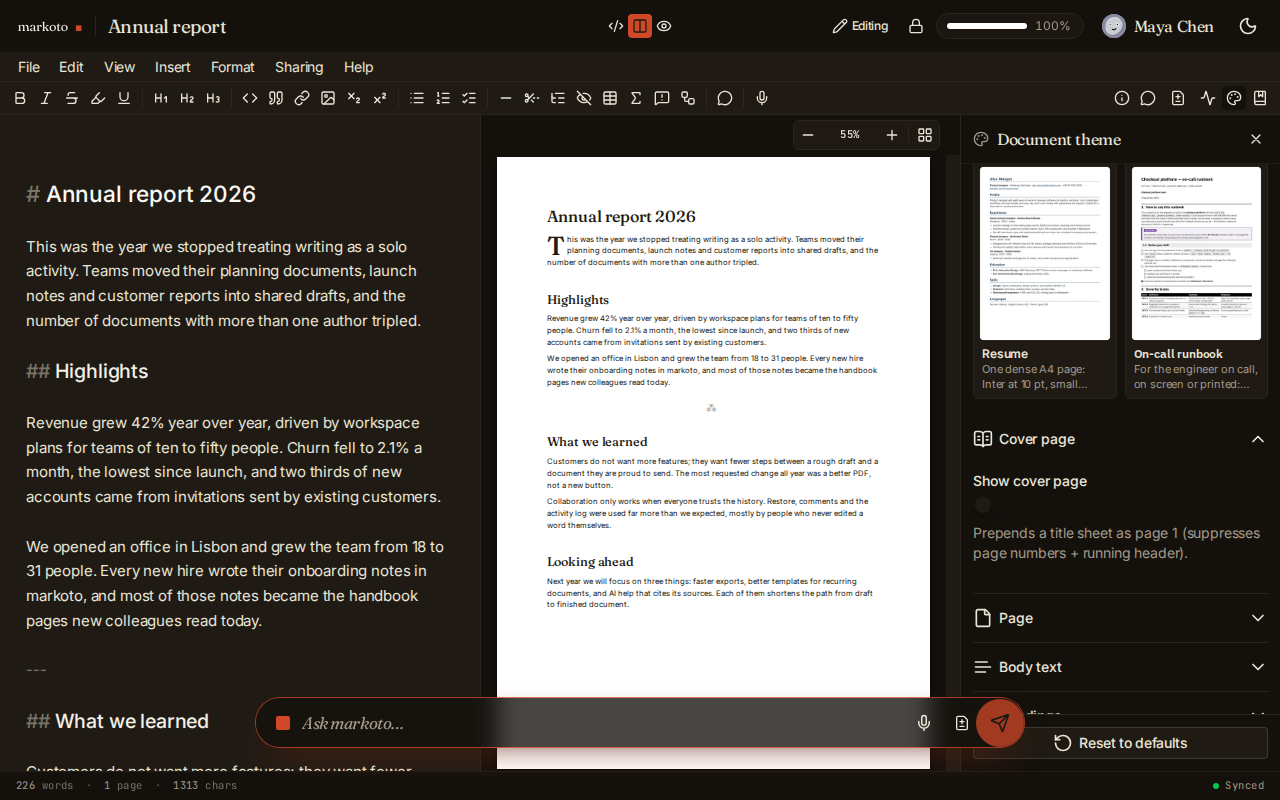
More in the docs: pick a theme, edit the cover page, fonts, colours and page layout.
Already have a .md file?
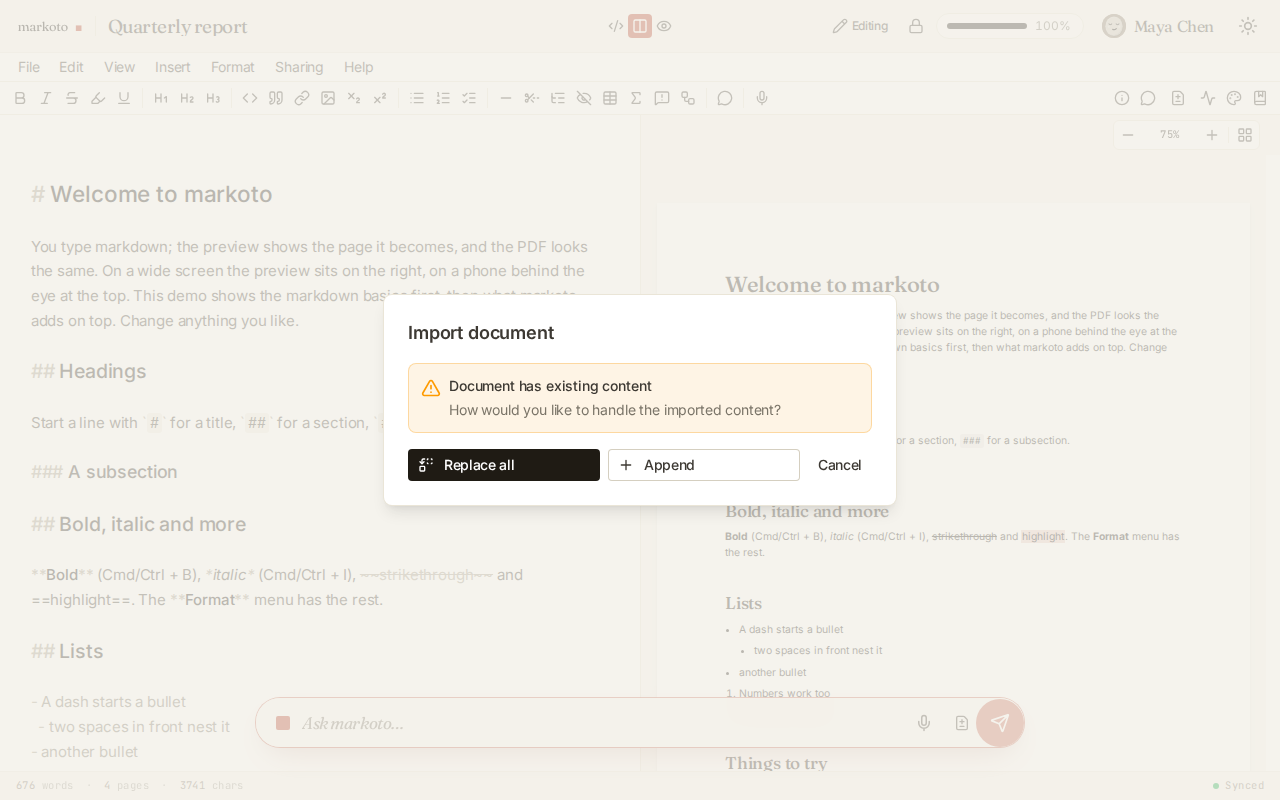
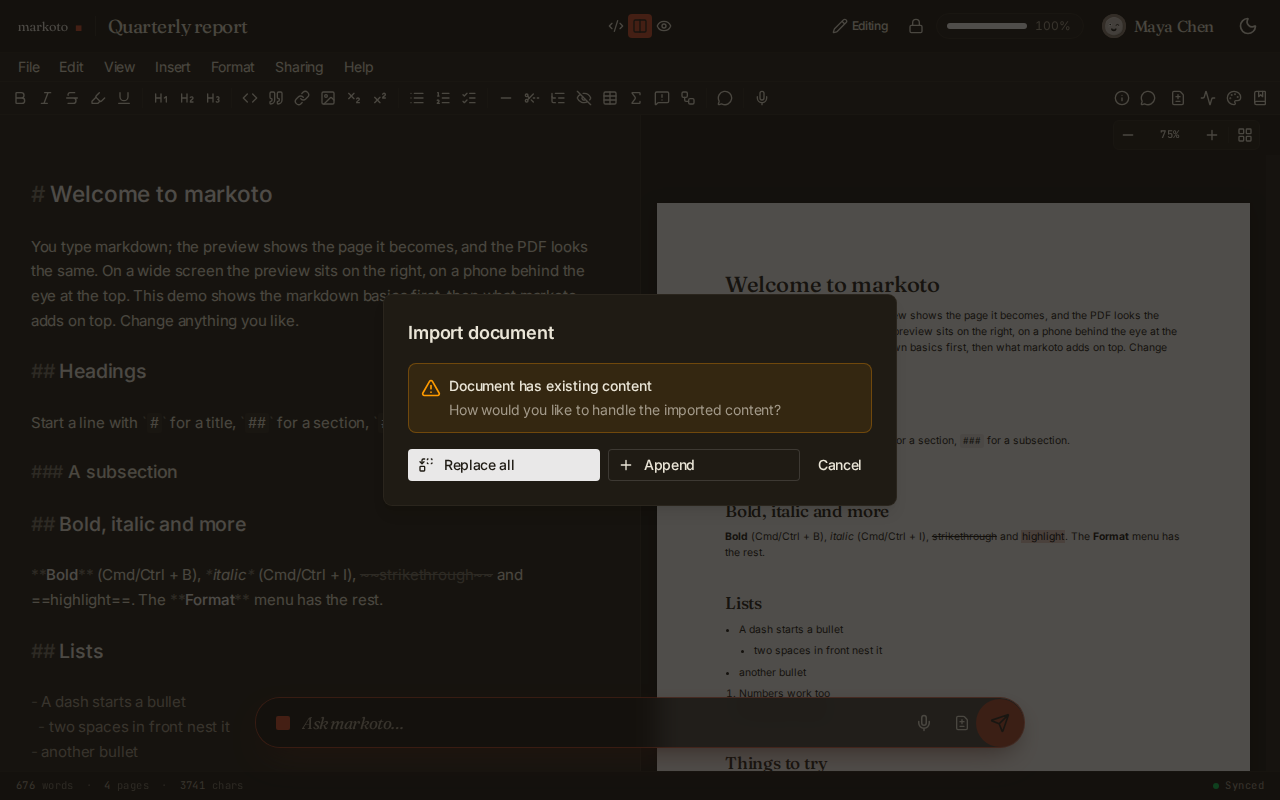
Create a document, then choose File › Import and pick the file. Markdown files up to 10 MB load as they are. Word (.docx), PDF, PowerPoint, Excel, HTML and EPUB files (up to 10 MB on markoto.app's free plan, up to 50 MB when you self-host) are converted to Markdown first. Then export with File › Export › PDF.
Limits
- The PDF is made on the server. A new PDF takes a few seconds; asking again without changes is instant. You can export up to 10 PDFs a minute from one network.
Cmd/Ctrl + Pprints the same pages through your browser instead. - Raw HTML is not rendered. HTML tags in the Markdown show as text. Use Markdown syntax or the theme instead.
- Four page sizes. A4, A5, Letter and Legal. There are no custom page sizes.
- Images need an account. Without one you can't upload pictures into a document.
- One document at a time. There is no batch converter on the page. To export many documents from a script, use the MCP server with an account.
For academic papers, see how markoto compares with Overleaf. Prices and limits are on the pricing page.
Questions
Is converting Markdown to PDF free?
Do I need to sign up?
Can the PDF have page numbers and a table of contents?
Does the PDF look the same as the preview?
Which Markdown is supported?
Can I use Letter size instead of A4?
Updated November 8, 2026